A wildcard certificate, which allows the securing of a domain and all its subdomains with a single certificate. For example, a single wildcard certificate for `*.chadchenault.com` can secure www.chadchenault.com, ftp.chadchenault.com, smtp.chadchenault.com, blog.chadchenault.com, and any other subdomain. For those new to linux, the ‘*’ is a wildcard variable that would match www, ftp, smtp, and blog in the above example.
Let’s Encrypt has to verify that I own the domain chadchenault.com before they will issue me a wildcard chadchenault.com certificate. They send me a code that I place in a TXT record with my domain host. Let’s Encrypt looks up my text record and reads my TXT record that I placed with my hosting provider. This gives Let’s Encrypt proof that I own the domain chadchenault.com and thus they will issue me the wildcard certificate.
To create the wildcard certificate, I followed the GREAT instructions from https://underconstructionpage.com/step-by-step-tutorial-installing-lets-encrypt-wildcard-certificates-for-multiple-subdomains/. I suggest following the instructions from that webpage. I only include my instructions for my personal notes. All commands are entered from a terminal session.
List certificates
certbot certificatesChange an existing certificate ‘chadchenault.com’ to a wildcard certificate.
sudo certbot certonly --manual --expand --cert-name chadchenault.com --preferred-challenges=dns -d "*.chadchenault.com" -d chadchenault.comCode Returns
- - - - - - - - - - - - - - - - - - - - - - - - - - - - - - - - - - - - - - -
Please deploy a DNS TXT record under the name:
_acme-challenge.chadchenault.com.
with the following value:

dkl;flkdf;lkIIUOIU-Ldfdxdkflj990fdlEDDE

Before continuing, verify the TXT record has been deployed. Depending on the DNS
provider, this may take some time, from a few seconds to multiple minutes. You can
check if it has finished deploying with aid of online tools, such as the Google
Admin Toolbox: https://toolbox.googleapps.com/apps/dig/#TXT/_acme-challenge.chadchenault.com.
Look for one or more bolded line(s) below the line ';ANSWER'. It should show the
value(s) you've just added.
- - - - - - - - - - - - - - - - - - - - - - - - - - - - - - - - - - - - - - - -
At this stage I log in to my hosting provider and create a new TXT record. Here is an example (I did not post the actual _acme-challenge value, this should be kept a secrete. The Yellow parts are the areas I filled in.

After saving your DNS TXT record, use the following link to see if your hosting provider has made your TXT record visible on the WWW. https://toolbox.googleapps.com/apps/dig/#TXT/
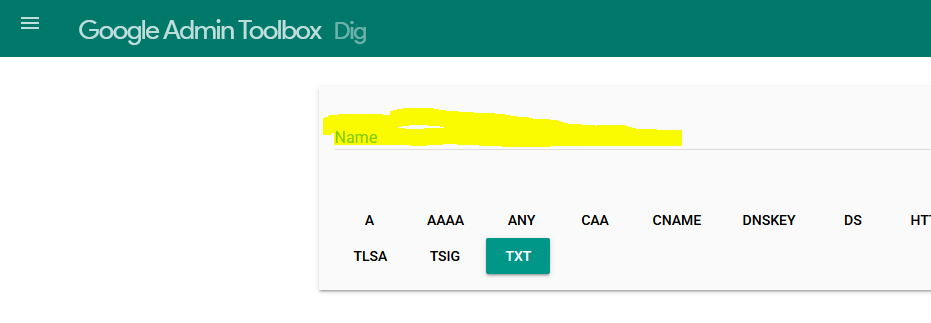
In the yellow space I added
_acme-challenge.chadchenault.com.Notice the period at the end, it needs to be there. Press “Enter” to submit your _acme-challenge. If you get your Text Value displayed to you, then your text record is available for Let’s Encrypt to verify your identity. You can then proceed from the terminal (I think I hit ‘Enter’ but I do not remember). Your certificate will be created and will be ready to use. Good Luck and I hope that helps you. I have even better help I can offer, it comes from Mark 12:28.
Mark 12:28 … “Which commandment is the most important of all?” 29Jesus answered, “The most important is, ‘Hear, O Israel: The Lord our God, the Lord is one. 30And you shall love the Lord your God with all your heart and with all your soul and with all your mind and with all your strength.’
Leave a Reply